reading-notes
Chapter 16: “Images” (pp.406-427)
Controlling sizes of images in CSS
control the size of an image using the width and height properties in CSS, just like you can for any other box.
img.large {
width: 500px;
height: 500px;}
img.medium {
width: 250px;
height: 250px;}
img.small {
width: 100px;
height: 100px;}
Aligning images Using CSS
float property can be used to move an element to the left or the right of its containing block.
img.align-left {
float: left;
margin-right: 10px;}
img.align-right {
float: right;
margin-left: 10px;}
img.medium {
width: 250px;
height: 250px;}
Centering images Using CSS
images are inline elements. This means that they flow within the surrounding text.

Chapter 19: “Practical Information” (476-492)
Search Engine Optimization (SEO )
SEO is a huge topic and several books have been written on the subject.
Search engine optimization (or SEO) is the practice of trying to help your site appear nearer the top of search engine results when people look for the topics that your website covers.
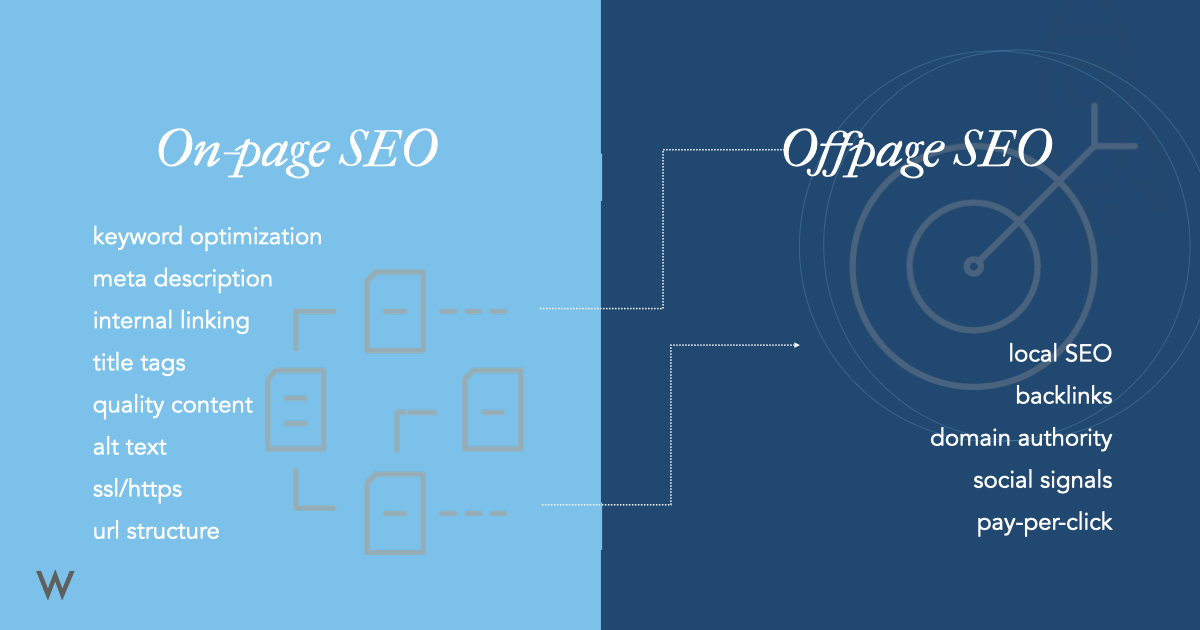
SEO is often split into two areas:
- on-page techniques
In every page of your website there are seven key places where keywords can appear in order to improve its findability.
- off-page techniques.
Getting other sites to link to you is just as important as on-page techniques.
Video and Audio APIs
HTML5 comes with elements for embedding rich media in documents — <video> and <audio>.
The <video> and <audio> elements allow us to embed video and audio into web pages.
<video controls>
  <source src="rabbit320.mp4" type="video/mp4">
  <source src="rabbit320.webm" type="video/webm">
  <p>Your browser doesn't support HTML5 video. Here is a <a href="rabbit320.mp4">link to the video</a> instead.</p>
</video>
Implementing the JavaScript
We’ve got a fairly complete HTML and CSS interface already; now we just need to wire up all the buttons to get the controls working.
-
Create a new JavaScript file in the same directory level as your index.html file. Call it custom-player.js.
-
At the top of this file, insert the following code
const media = document.querySelector('video');
const controls = document.querySelector('.controls');

const play = document.querySelector('.play');
const stop = document.querySelector('.stop');
const rwd = document.querySelector('.rwd');
const fwd = document.querySelector('.fwd');

const timerWrapper = document.querySelector('.timer');
const timer = document.querySelector('.timer span');
const timerBar = document.querySelector('.timer div');
- Next, insert the following at the bottom of your code:
media.removeAttribute('controls');
controls.style.visibility = 'visible';
Chapter 9: pages 201-206
Flash is a very popular technology used to add animations, video, and audio to websites.
How Flash Works
Since the late 1990s, Flash has been a very popular tool for creating animations, and later for playing audio and video in websites.
If you want to create your own Flash movie, you need to purchase the Flash authoring environment from Adobe.
Use of Flash
When Flash was first released, it was developed to create animations. The technology quickly evolved, however, and people started to use it to build media players and even entire websites.